
Step 1: Download VMware Workstation
Visit the official VMware website and download the latest version of VMware Workstation. You may need to create a VMware account and log in to access the download.
Step 2: Install VMware Workstation
Run the installer you downloaded in Step 1. Follow the on-screen instructions to install VMware Workstation on your computer. You may need to restart your system after the installation is complete.
Step 3: Download Ubuntu ISO
Visit the official Ubuntu website https://ubuntu.com/download/desktop and download the latest version of the Ubuntu Desktop ISO. Choose the appropriate architecture (32-bit or 64-bit) based on your system.
Step 4: Create a New Virtual Machine in VMware Workstation


Step 5: Specify the Ubuntu ISO

Step 6: Name and Specify Storage

Step 7: Customize Hardware (Optional)
You can customize the hardware settings if needed. Adjust the number of processors, memory, and other settings based on your system’s capabilities.

Step 8: Finish and Install

Step 9: Start the Virtual Machine

Step 10: Complete Ubuntu Installation
Follow the Ubuntu installation prompts, including language, keyboard layout, and disk partitioning. Once the installation is complete, restart the virtual machine.

Step 11: Install VMware Tools (Optional but recommended)
After Ubuntu is installed, it’s recommended to install VMware Tools for better integration and performance. In the VMware Workstation menu, go to “VM” -> “Install VMware Tools.” Follow the on-screen instructions within the Ubuntu virtual machine to complete the installation.

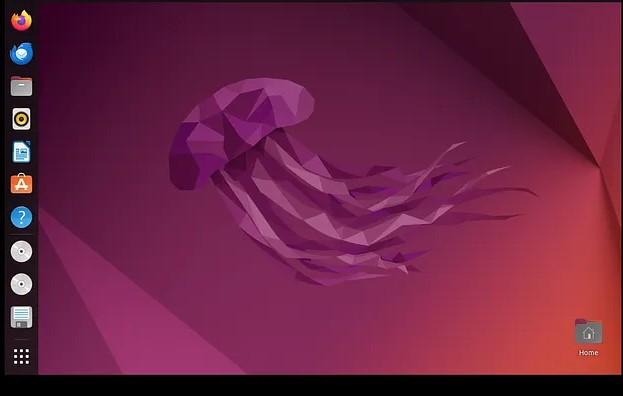
That’s it! You should now have Ubuntu installed and running in VMware Workstation on your system.
Conclusion:
This step-by-step guide has equipped you with the knowledge to seamlessly integrate Ubuntu into your computer using VMware Workstation. Virtualization not only simplifies the process of exploring different operating systems but also offers a practical solution for testing software or learning without the need for additional hardware.
By following these straightforward instructions, you’ve created a virtual environment where Ubuntu operates within your existing system. Embrace the flexibility of VMware Workstation and Ubuntu, and enjoy the benefits of a virtualized computing experience.