VIRTUAL MEMORY - INTRODUCTION
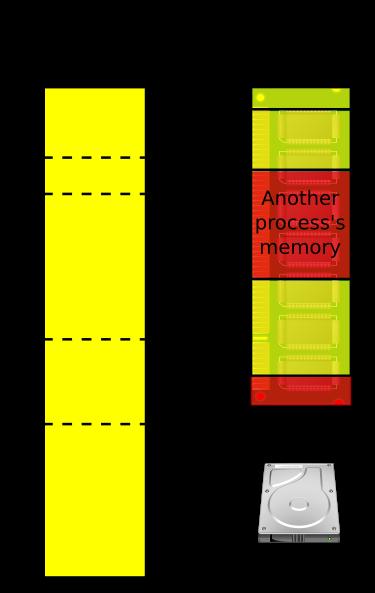
- Virtual memory is a memory management technique where section of hard drive can be used as if it were a part of the main memory.
- It gives the appearance of a large, continuous block of memory to applications, even if the physical memory (RAM) is limited.
- It allows systems to run applications requiring large amounts of resources on a device with limited physical RAM.
- As Physical RAMs are expensive, virtual memory provides a more affordable option to compensate for limited memory.
Note: The maximum size of virtual memory allowed to be created is double that of physical RAM. This means that if the device were to have 8 GB physical RAM, 16 GB of hard disk space can be dedicated as virtual memory.
VIRTUAL MEMORY - WORKING
- Virtual memory uses both hardware and software to operate. When an application is in use, data from that program is stored in a physical address using RAM.
- A memory management unit (MMU) maps the address to RAM and automatically translates addresses. The MMU can, for example, map a logical address space to a corresponding physical address.
- While copying virtual memory into physical memory, the OS divides memory with a fixed number of addresses into either pagefiles or swap files. Each page is stored on a disk, and when the page is needed, the OS copies it from the disk to main memory and translates the virtual addresses into physical addresses.
Note: The process of swapping virtual memory to physical is rather slow. This means using virtual memory generally causes a noticeable reduction in performance. This is because hard disk does not have the same high-speed properties of physical RAM.
STEPS TO INCREASE VIRTUAL MEMORY
- Right-click This PC > Properties.
- Click Advanced system settings > Environment Variables.
- Under System variables, click New, set
PAGEFILE as the name, and C:\pagefile.sys <InitialSize> <MaximumSize> as the value.
- Click OK and restart the PC.