Today I am going to show a simple android application.
Please note that this app is targeted to mobile devices only, I am not sure if this app works in Emulator and how this app looks in tablet devices.
Designing the application
Following is the screenshot of the app which we are going to develop into this tutorial.
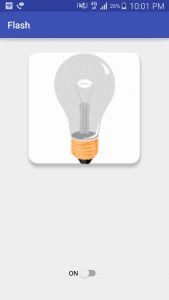
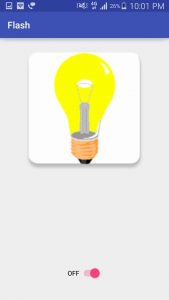
Let's Create a new project
1. Create a new project in Android Studio by going to
File ⇒ New ⇒ Android Application Project . I named my package as
tp.com.fahim and main activity as
MainActivity.java
2. Open your
AndroidManifest.xml file and add required permissions. I also disabled landscape mode in manifest file by using
android:screenOrientation=”portrait” property.
android.permission.CAMERA – required to access the camera device
android.hardware.camera – required to access camera hardware features
AndroidManifest.xml
<?xml version="1.0" encoding="utf-8"?>
<manifest xmlns:android="http://schemas.android.com/apk/res/android"
package="tp.com.fahim">
<uses-permission android:name="android.permission.CAMERA" />
<uses-feature android:name="android.hardware.camera" />
<application
android:allowBackup="true"
android:icon="@mipmap/ic_launcher"
android:label="@string/app_name"
android:supportsRtl="true"
android:theme="@style/AppTheme">
<activity android:name=".MainActivity">
<intent-filter>
<action android:name="android.intent.action.MAIN" />
<category android:name="android.intent.category.LAUNCHER" />
</intent-filter>
</activity>
</application>
</manifest>
3. Place all the switch image files under drawable-hdpi, drawable-mdpi, drawable-ldpi folders. I named switch image files as
btn_switch_off.png and
btn_switch_on.png
4. Open
activity_main.xml file located under
res ⇒ layout folder and type the following code. This layout file acts as main screen of the application.
Activity_main.xml
<?xml version="1.0" encoding="utf-8"?>
<RelativeLayout xmlns:android="http://schemas.android.com/apk/res/android"
xmlns:tools="http://schemas.android.com/tools"
android:id="@+id/activity_main"
android:layout_width="match_parent"
android:layout_height="match_parent"
tools:context="tp.com.fahim.MainActivity">
<ImageView
android:id="@+id/imageView"
android:layout_width="300dp"
android:layout_height="300dp"
android:layout_margin="0dp"
android:src="@drawable/pic_bulboff"
android:layout_alignParentTop="true"
android:layout_centerHorizontal="true"
/>
<Switch
android:id="@+id/switch1"
android:layout_width="wrap_content"
android:layout_height="wrap_content"
android:layout_alignParentBottom="true"
android:layout_centerHorizontal="true"
android:layout_marginBottom="44dp"
android:text="ON" />
</RelativeLayout>
5. Open your
MainActivity.java file and do the following changes.
Final Code
MainActivity.java
package tp.com.fahim;
import android.app.AlertDialog;
import android.content.DialogInterface;
import android.content.pm.PackageManager;
import android.hardware.Camera;
import android.hardware.Camera.Parameters;
import android.os.Bundle;
import android.support.v4.widget.DrawerLayout;
import android.support.v7.app.AppCompatActivity;
import android.util.Log;
import android.view.View;
import android.widget.CompoundButton;
import android.widget.ImageView;
import android.widget.Switch;
import android.widget.TextView;
public class MainActivity extends AppCompatActivity {
Switch btnSwitch;
ImageView img;
private Camera camera;
private boolean isFlashOn;
private boolean hasFlash;
Parameters params;
private static int flag=1;
@Override
protected void onCreate(Bundle savedInstanceState) {
super.onCreate(savedInstanceState);
setContentView(R.layout.activity_main);
// flash switch button
btnSwitch = (Switch) findViewById(R.id.switch1);
img = (ImageView) findViewById(R.id.imageView);
// First check if device is supporting flashlight or not
hasFlash = getApplicationContext().getPackageManager()
.hasSystemFeature(PackageManager.FEATURE_CAMERA_FLASH);
if (!hasFlash) {
// device doesn't support flash
// Show alert message and close the application
AlertDialog alert = new AlertDialog.Builder(MainActivity.this)
.create();
alert.setTitle("Error");
alert.setMessage("Sorry, your device doesn't support flash light!");
alert.setButton("OK", new DialogInterface.OnClickListener() {
public void onClick(DialogInterface dialog, int which) {
// closing the application
finish();
}
});
alert.show();
return;
}
// get the camera
getCamera();
// Switch button click event to toggle flash on/off
btnSwitch.setOnCheckedChangeListener(new CompoundButton.OnCheckedChangeListener() {
@Override
public void onCheckedChanged(CompoundButton buttonView, boolean isChecked) {
if (btnSwitch.isChecked()) {
turnOnFlash();
flag=1;
} else {
turnOffFlash();
flag=0;
}
}
});
img.setOnClickListener(new View.OnClickListener() {
@Override
public void onClick(View v) {
if(flag==0)
btnSwitch.setChecked(true);
else btnSwitch.setChecked(false);
}
});
}
// Get the camera
private void getCamera() {
if (camera == null) {
try {
camera = Camera.open();
params = camera.getParameters();
} catch (RuntimeException e) {
Log.e("Camera Error. Failed to Open. Error: ", e.getMessage());
}
}
}
// Turning On flash
private void turnOnFlash() {
if (!isFlashOn) {
if (camera == null || params == null) {
return;
}
params = camera.getParameters();
params.setFlashMode(Parameters.FLASH_MODE_TORCH);
camera.setParameters(params);
camera.startPreview();
isFlashOn = true;
// changing button/switch image & text
img.setImageResource(R.drawable.pic_bulbon);
btnSwitch.setText("OFF");
}
}
// Turning Off flash
private void turnOffFlash() {
if (isFlashOn) {
if (camera == null || params == null) {
return;
}
params = camera.getParameters();
params.setFlashMode(Parameters.FLASH_MODE_OFF);
camera.setParameters(params);
camera.stopPreview();
isFlashOn = false;
// changing button/switch image
img.setImageResource(R.drawable.pic_bulboff);
btnSwitch.setText("ON");
}
}
@Override
protected void onDestroy() {
super.onDestroy();
camera.release();
params=null;
}
@Override
protected void onPause() {
super.onPause();
// on pause turn off the flash
// turnOffFlash();
}
@Override
protected void onRestart() {
super.onRestart();
}
@Override
protected void onResume() {
super.onResume();
if(flag==1) btnSwitch.setChecked(true);
if (flag==0) btnSwitch.setChecked(false);
}
@Override
protected void onStart() {
super.onStart();
getCamera();
// on starting the app get the camera params
}
@Override
protected void onStop() {
super.onStop();
}
}