
The information provided by website should be used for educational purpose only, website will not be held responsible in the event any criminal charges be brought against any individuals misusing the information in this website to break the law.
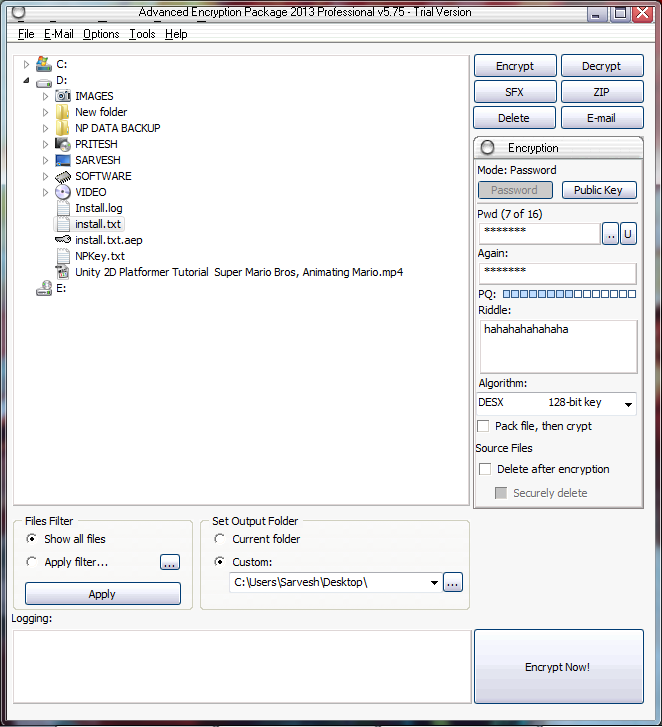
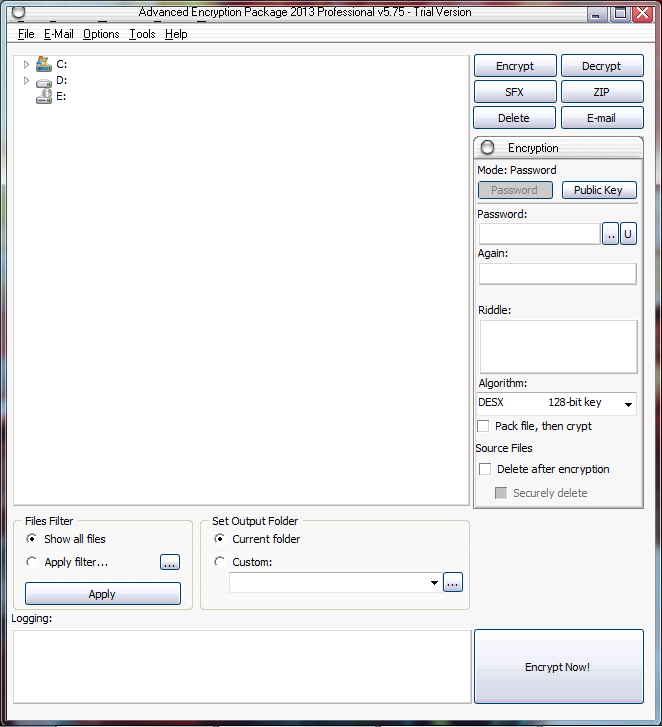 Select File and put password as well as Riddle
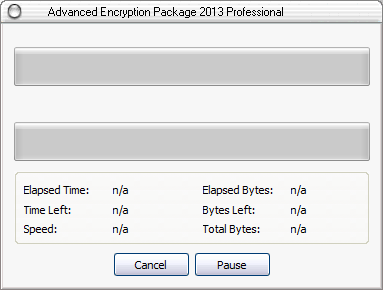
 Here we can see the progress
 Click on ‘Encrypt Now’ Button to Encrypt the Text file.
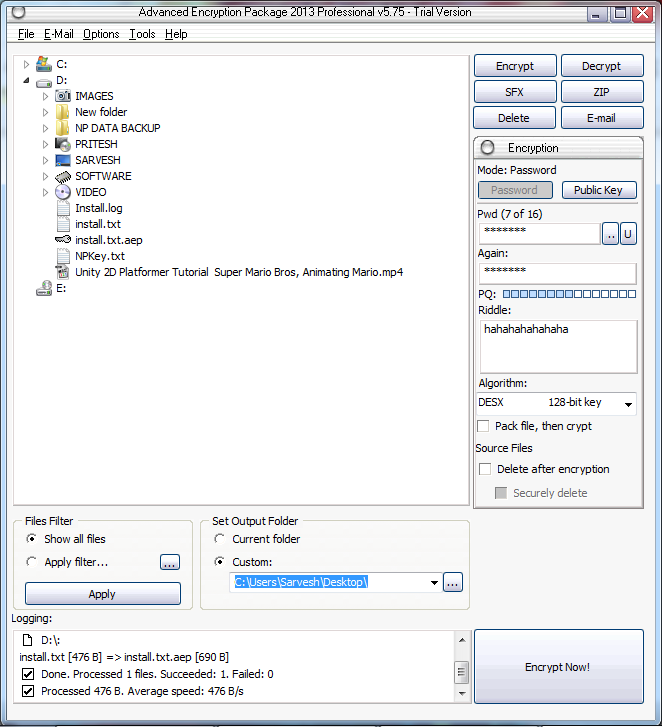 Encrypted text file will be stored on different location and Double Click to open the File.
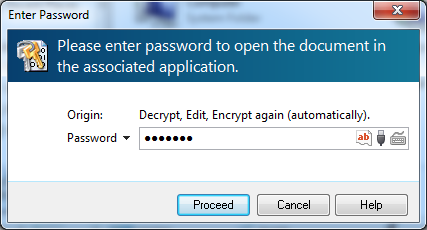
 Use same password for Decrypt the encrypted text file.
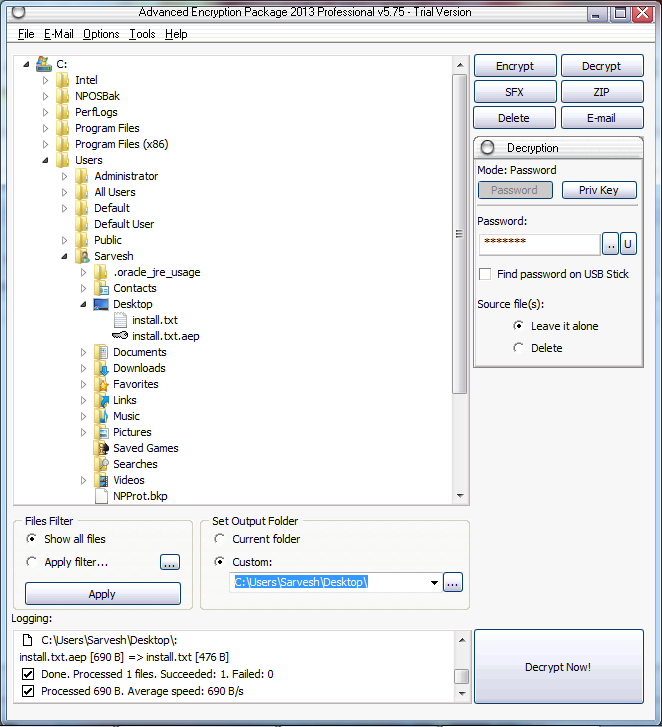
 Or directly decrypt the file from the tree by selecting the encrypted file in the tree.
using same password and click on 'Decrypt now'
Or directly decrypt the file from the tree by selecting the encrypted file in the tree.
using same password and click on 'Decrypt now'
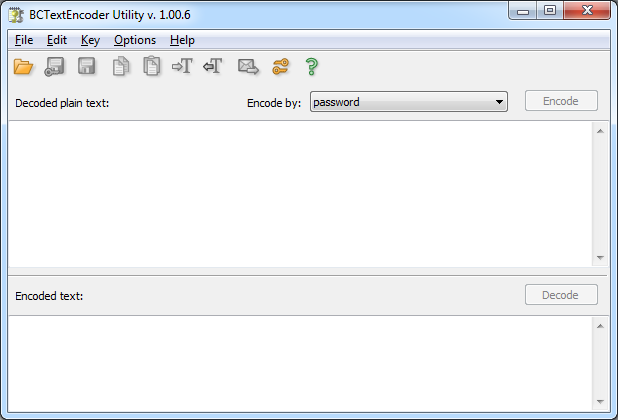 Open a simple text file and click on encode
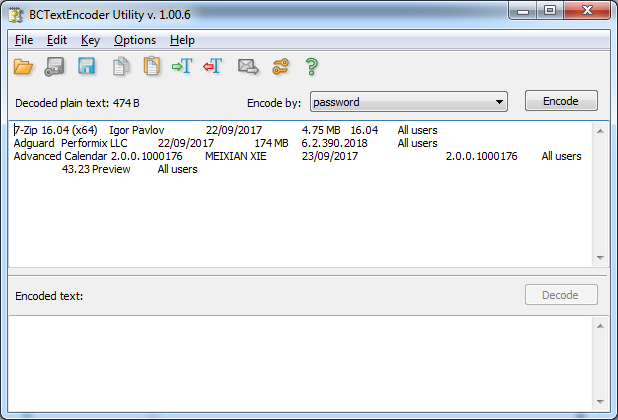 Enter Password
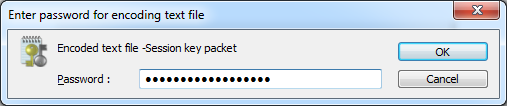
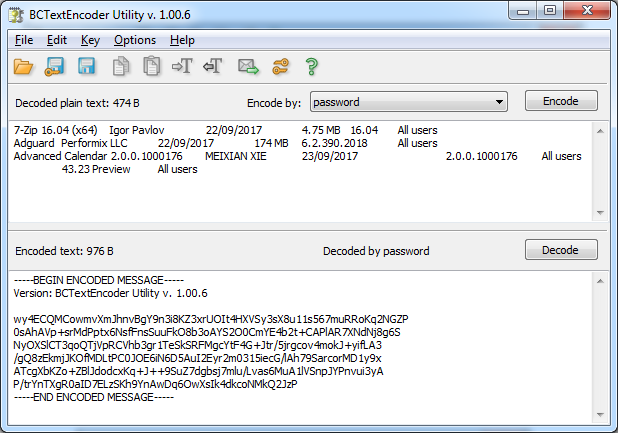
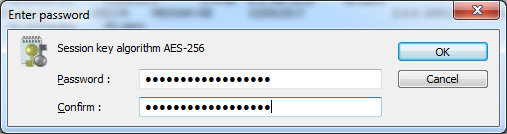 Now the file is Encrypted in AES-256 and save it.
Re-open the Encoded to decrypt the data.
Now the file is Encrypted in AES-256 and save it.
Re-open the Encoded to decrypt the data.
 Cryptool
Open Cryptool or https://www.cryptool.org/en/ct2-downloads and open a simple Text file to Encrypt
Cryptool
Open Cryptool or https://www.cryptool.org/en/ct2-downloads and open a simple Text file to Encrypt
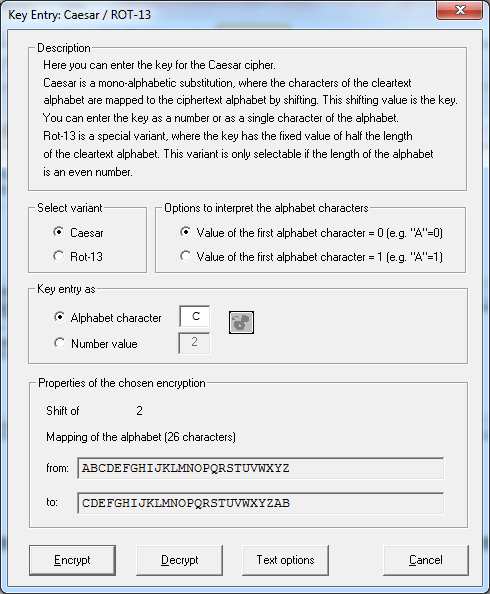
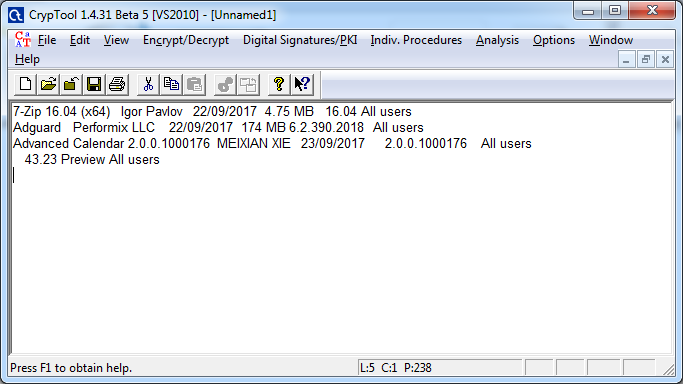 Select Encrypt/Decrypt and Select Ceasar.
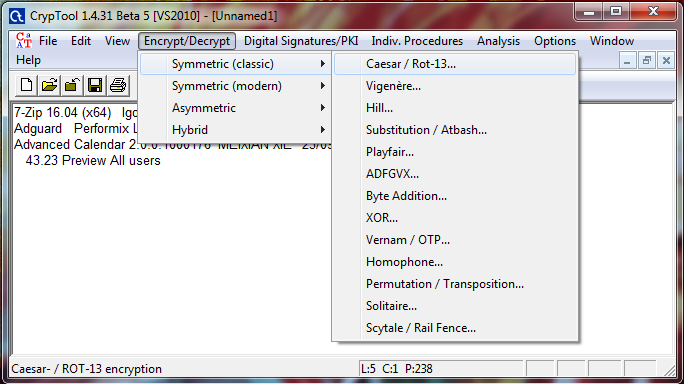 Enter Alphabet for character mapping and click on encrypt.
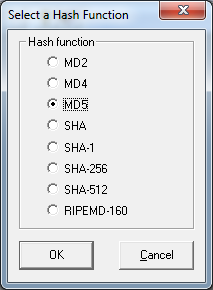
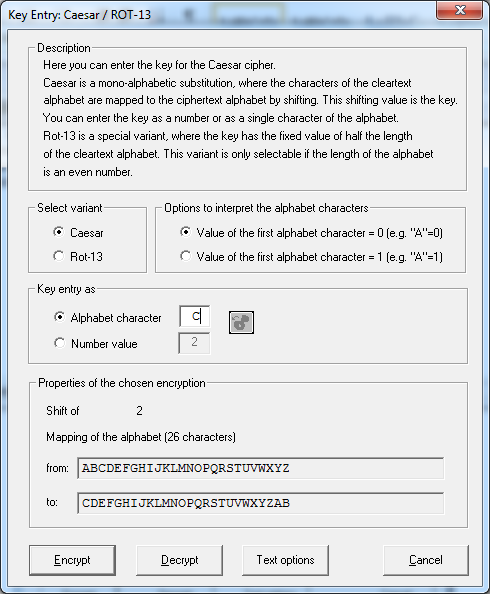 Result of shift 2 ceaser cipher
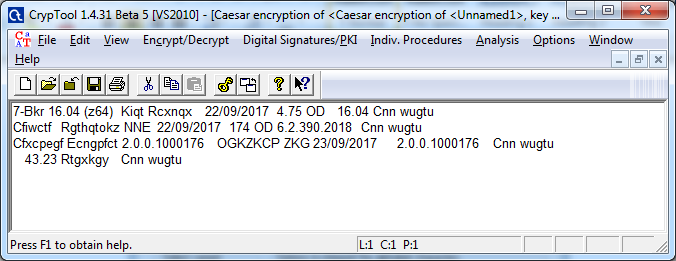 This time Click on Decrypt by keeping same value.
 original information
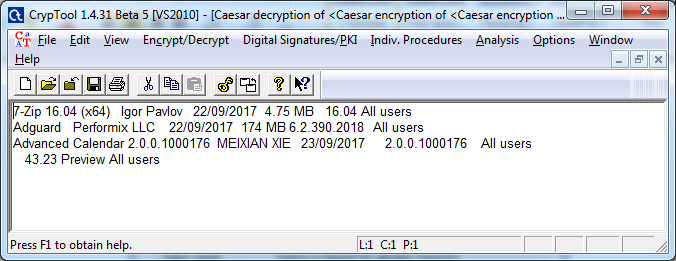 Click on Hash value and select a text file
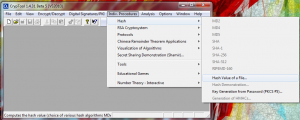 select hash function.
 click close.
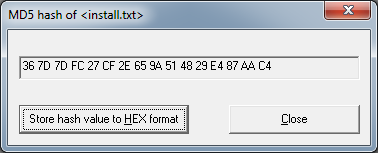
 Hashcalc
Open Hashcalc or http://www.slavasoft.com/hashcalc/.
Hashcalc
Open Hashcalc or http://www.slavasoft.com/hashcalc/.
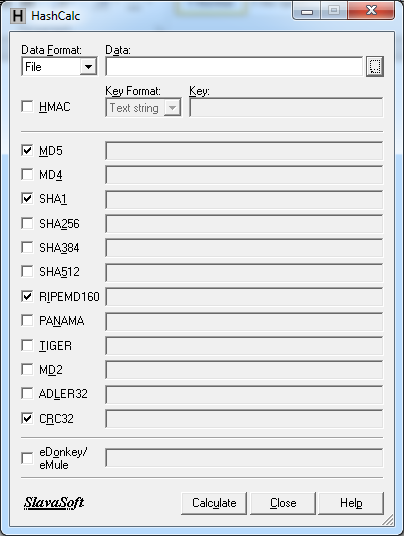 Data Format should be File and select simple text file.
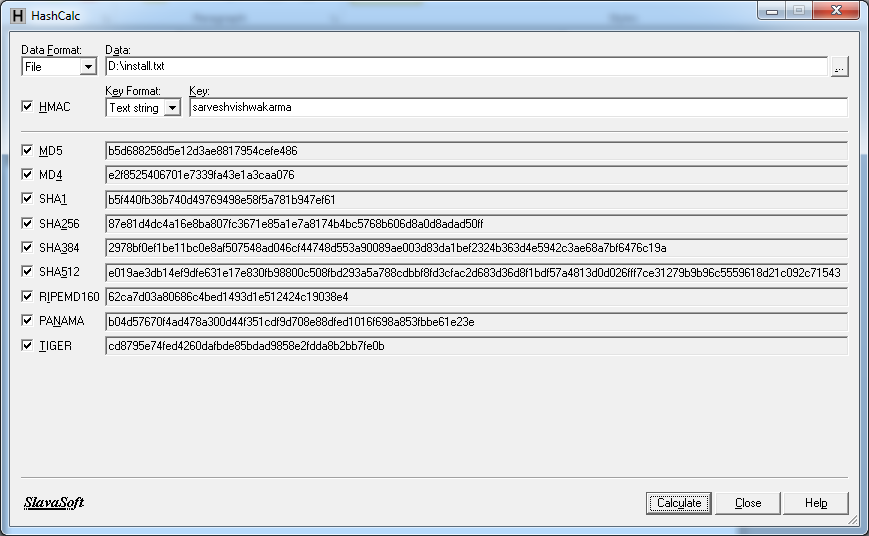
chack HMAC and input a string.
Data Format should be File and select simple text file.
chack HMAC and input a string.
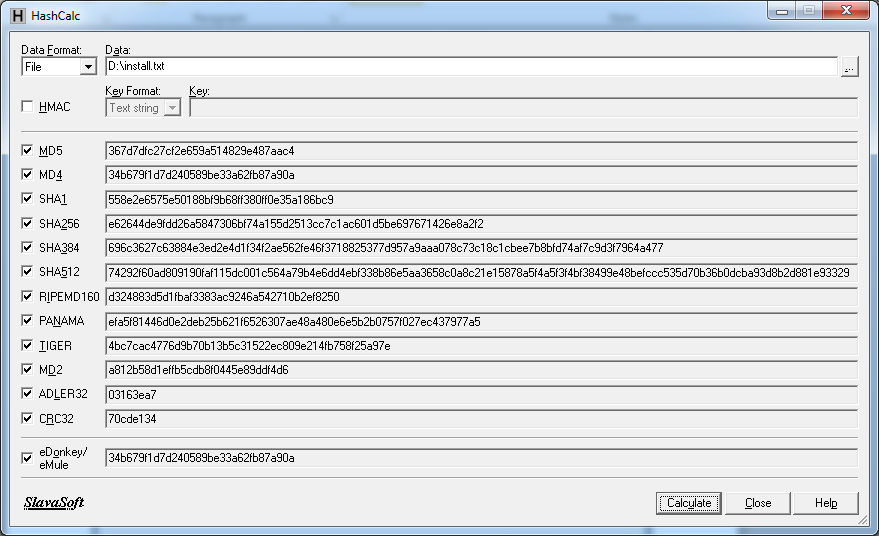
 This time don’t check HMAC and calculate hash without key.
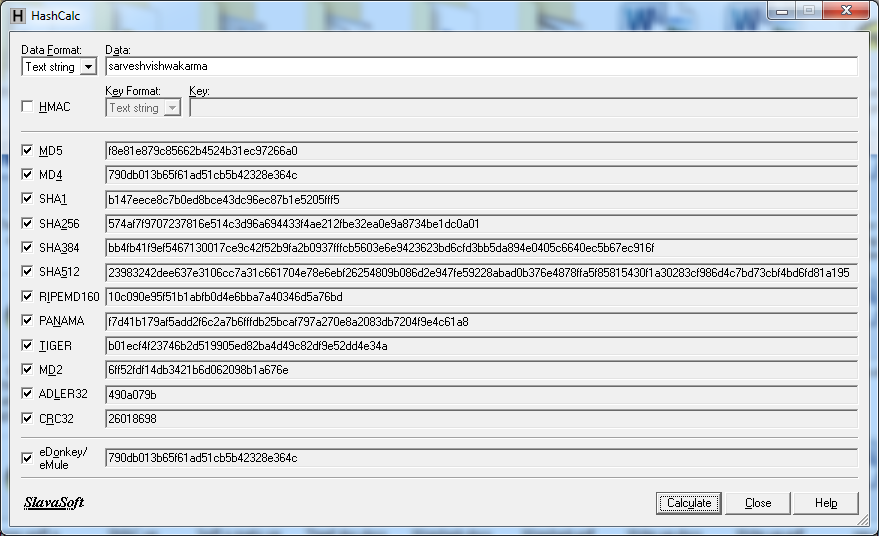
 this time use text string as data format
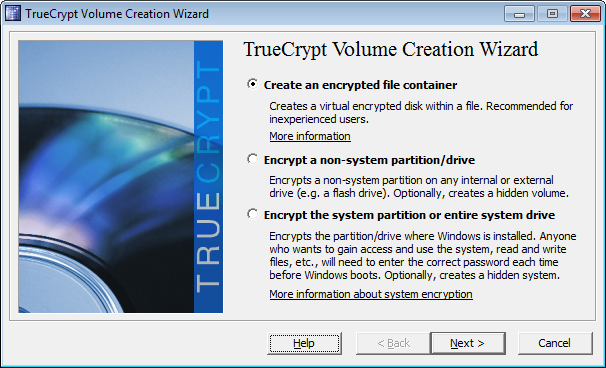
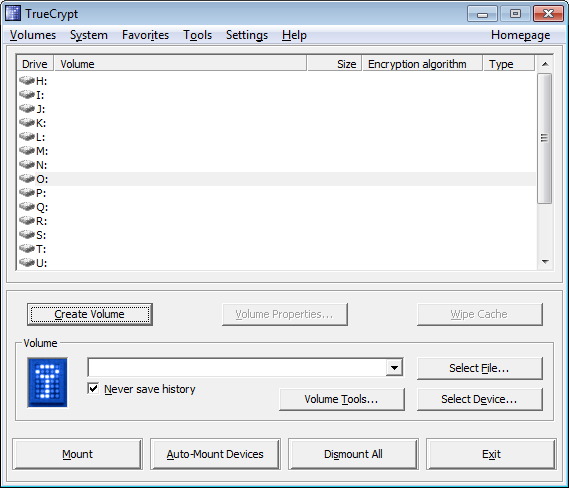 Select create an encrypted file container and click next.
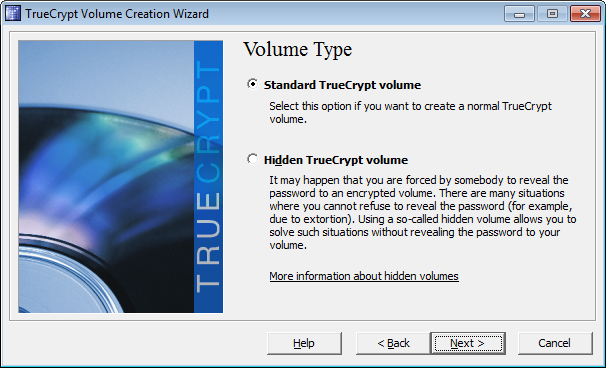
 Select standard Truecrypt volume and click next.
 create a folder and browse the same folder .
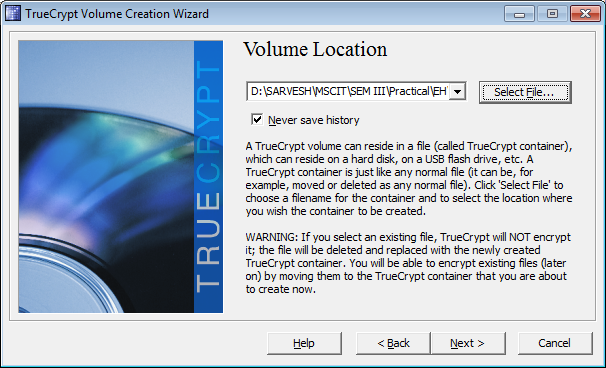
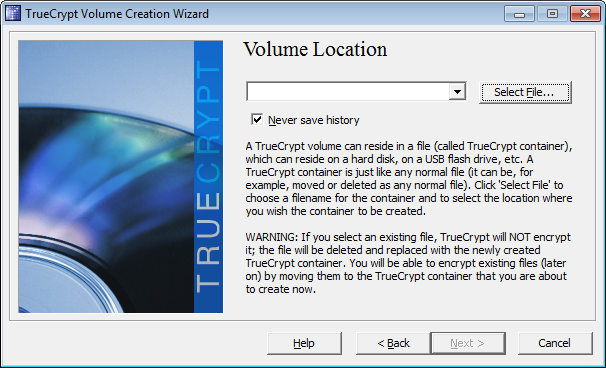 save with any name and click next.
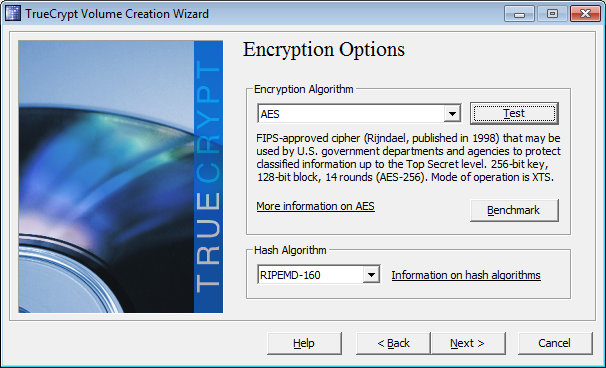
 select encryption option.
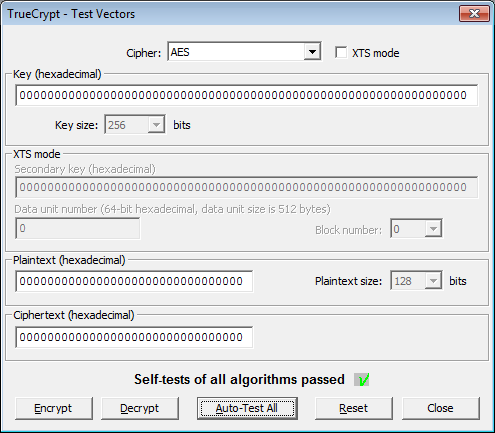
 click on Auto-Test All.
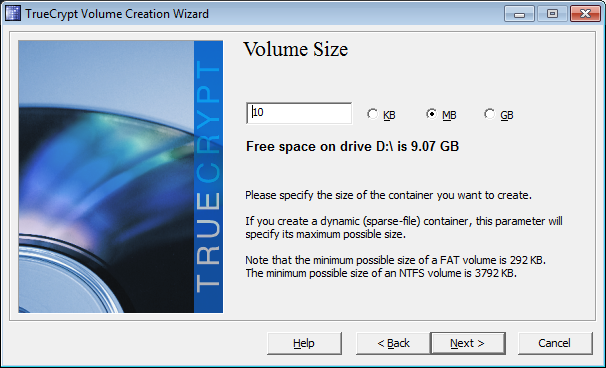
 put the volume size as 10mb.
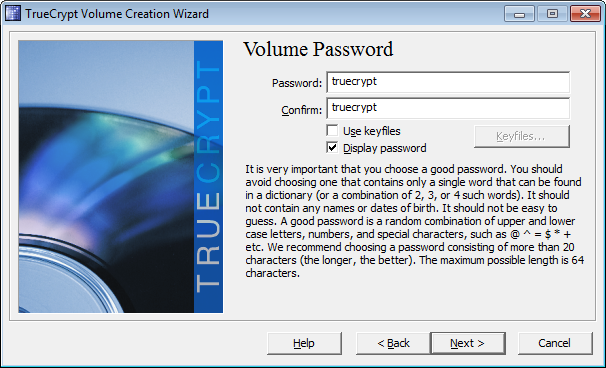
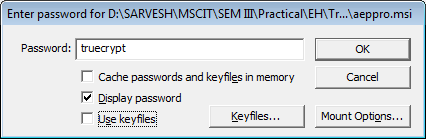
 set the password as 'truecrypt'
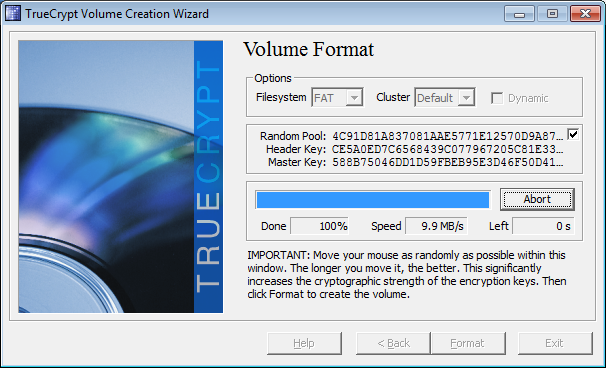
 Decide the volume format and click on Format.
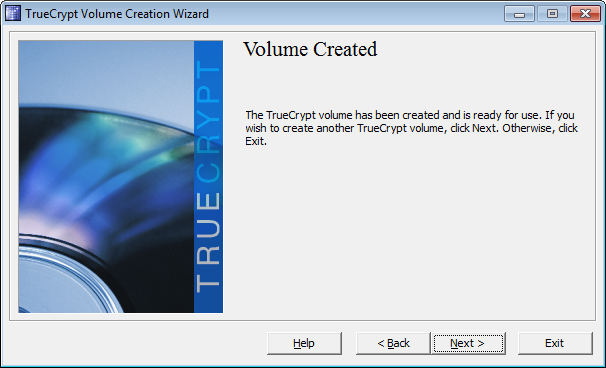
 Click next and exit the wizard.
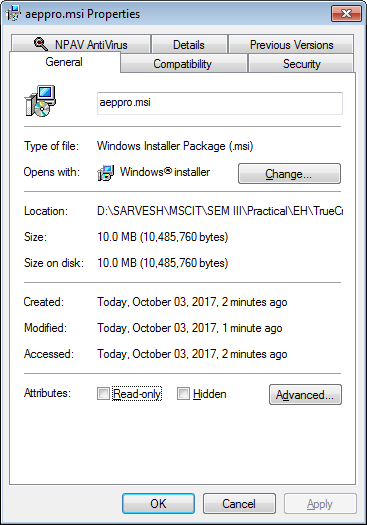
 check the property of the file created in folder.
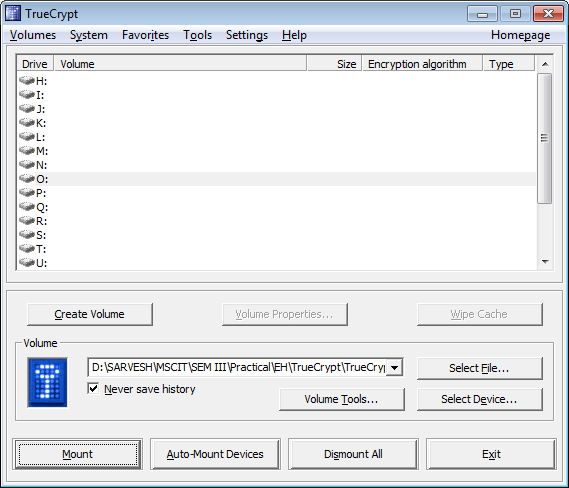
 Select drive and hit Mount button.
 use same password and click OK .
 the 10mb's drive is given to drive O.
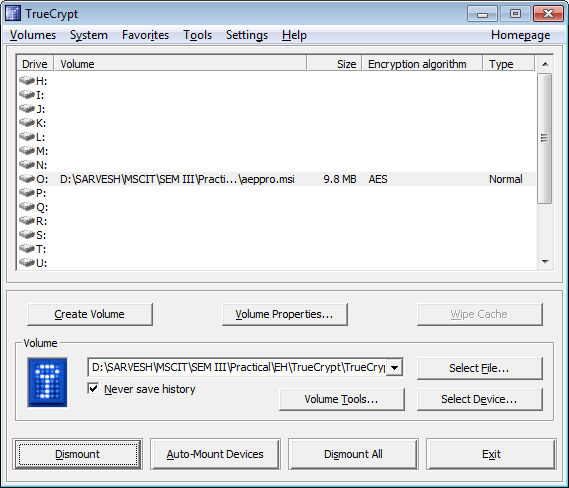 to delete the encrypted volume , dismount the drive and delete the folder.
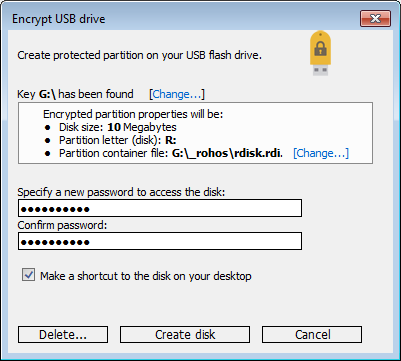
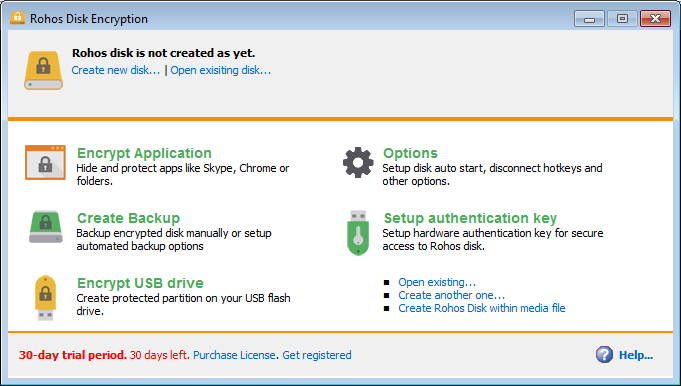 enter password and click create disk.
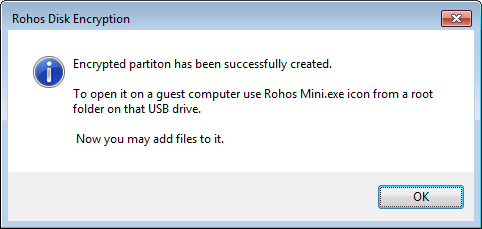 now we can see the disk is connected.
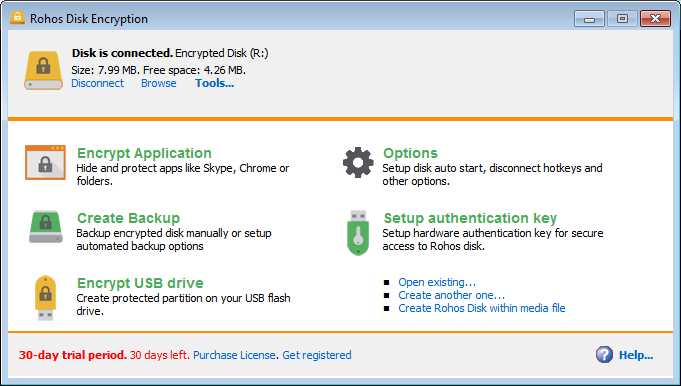 now goto disk and open rohosmini.exe .
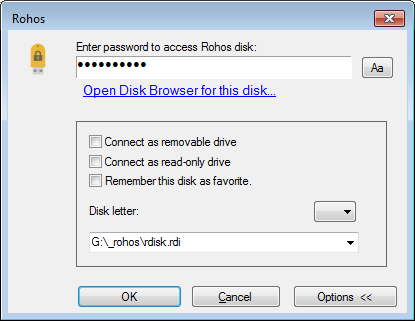
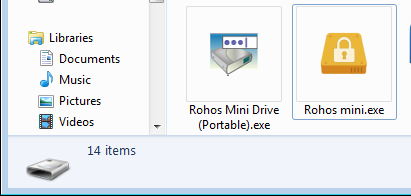 enter the same password used during disk creation.
 now we can see the encypted volume